Already a Canon Owner? Register your product for software and firmware updates and opt in to receive personalised tips and exclusive offers
Support
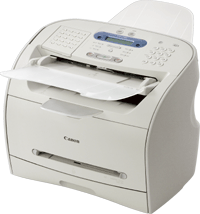
Canon FAX-L380
Download drivers, software, firmware and manuals and get access to troubleshooting resources for your FAX machine.
Drivers
For certain products, a driver is necessary to enable the connection between your product and a computer. On this tab, you will find the applicable drivers for your product or in the absence of any drivers, an explanation of your product's compatibility with each operating system.
Helpful Information : To access software, manuals and other content please use the tabs above.
Software
Software
Manuals
Apps & Functions
Firmware
FAQs & Help
Important Information
Error Codes
Specifications
Useful Links
You might also need...
-
Contact Us
Contact us for telephone or e-mail support
-
Repair
Locate a repair centre and find other useful information regarding our repair process
-
Recycling
Learn more about Canon's Cartridge Recycling Programme
-
Canon ID
Register your product and manage your Canon ID account